Notifications
The Pixel Admin application has a notification system (notifications): they can be generated by the system when certain events occur, and can also be sent by users through the application interface.
Notifications are always addressed to one or more users and can be linked to system objects:
- New notifications addressed to the user can be viewed in the notification window that opens in the first upper corner of the screen.
- All notifications addressed to the user are available in the corresponding tab in the card of his account.
- Notifications linked to a system element can be viewed in the card of this element: notifications of all senders, both system and user, get there.
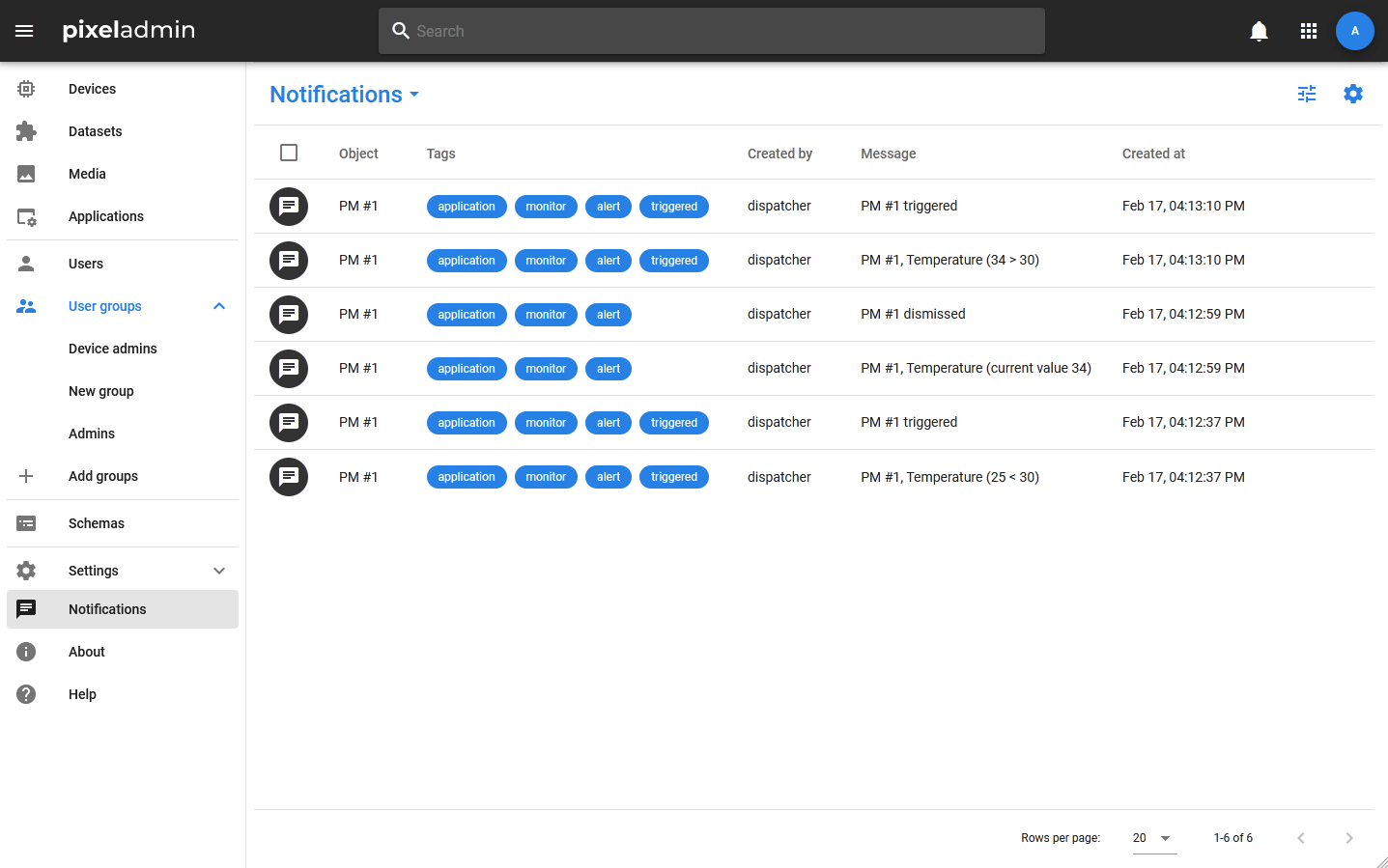
- A notification table is also available, which displays all notifications generated by the system.
Tags
The following tags are used to organize the notification log:
- Alert — a tag for notifications about critical events.
- Notice — a tag for other notifications from applications and objects.
- Message — notifications sent by users automatically receive this tag.
Tags are also used to indicate the applications in which the notification should be displayed. A notification in which the application is not specified will be displayed only in the table of all notifications in the Admin Pixel.
Viewing a list of notifications
The list of notifications appears when you click the bell in the upper—right corner of the screen (the main toolbar of the application). When new notifications appear, a red mark lights up near the bell.
The list is divided into sections: a general section and separate tabs, in which notifications are displayed, filtered by mandatory tags.
Each notification list item contains the following information:
- The name of the element that the notification is linked to.
- The message text — if the notification is created by the system, it will contain a description of the event that occurred.
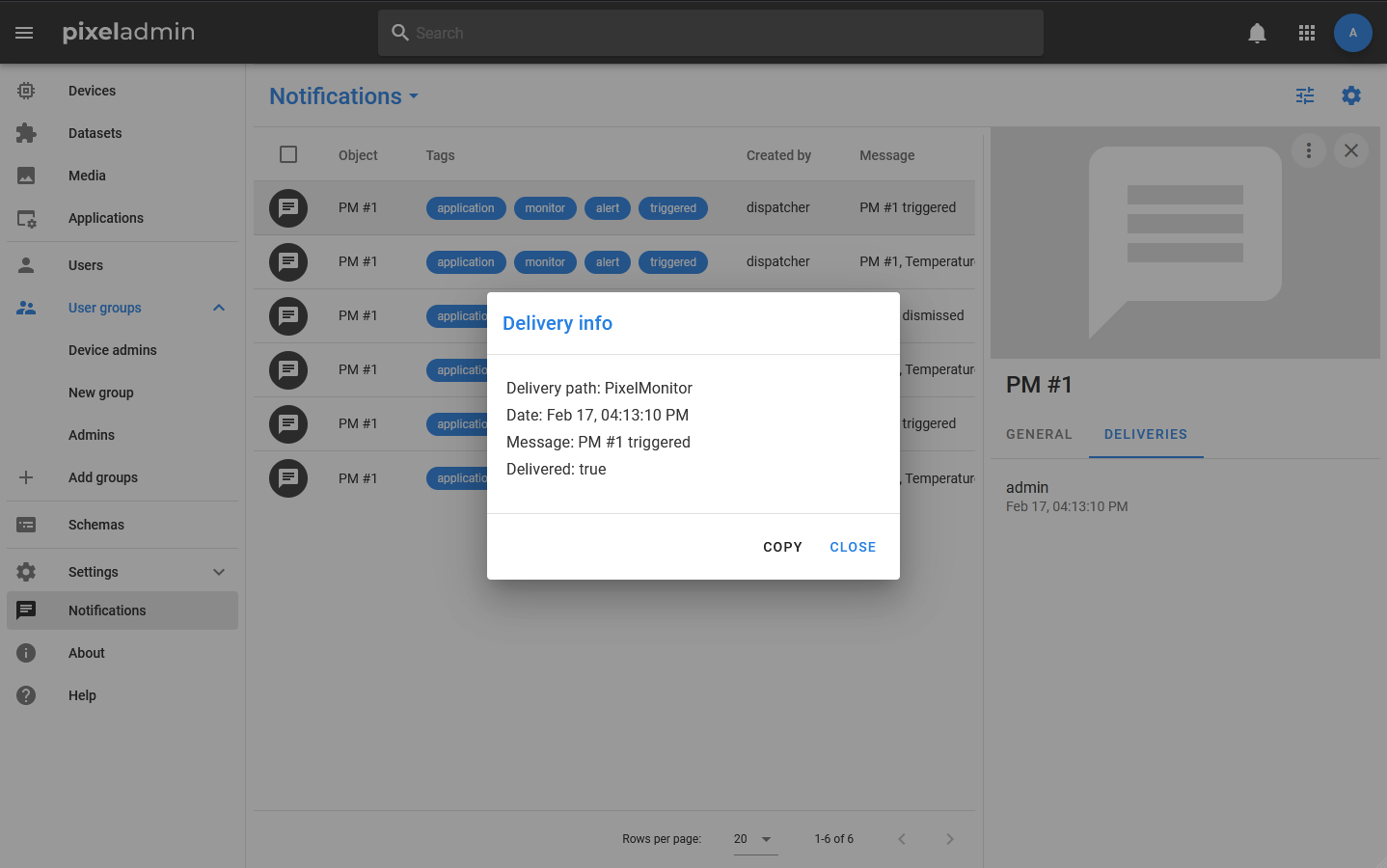
- Sender, date and time of sending.
By clicking the button at the bottom of the list, you can go to the Notifications tab in the user card, where you can view all notifications received by the user and saved in the system.
Configuring notifications
Notification settings are linked to the user's profile, so each Pixel Admin user has the opportunity to configure or completely disable notifications by selecting the Notifications settings item in their account card, which appears when you click on the avatar in the upper right corner.
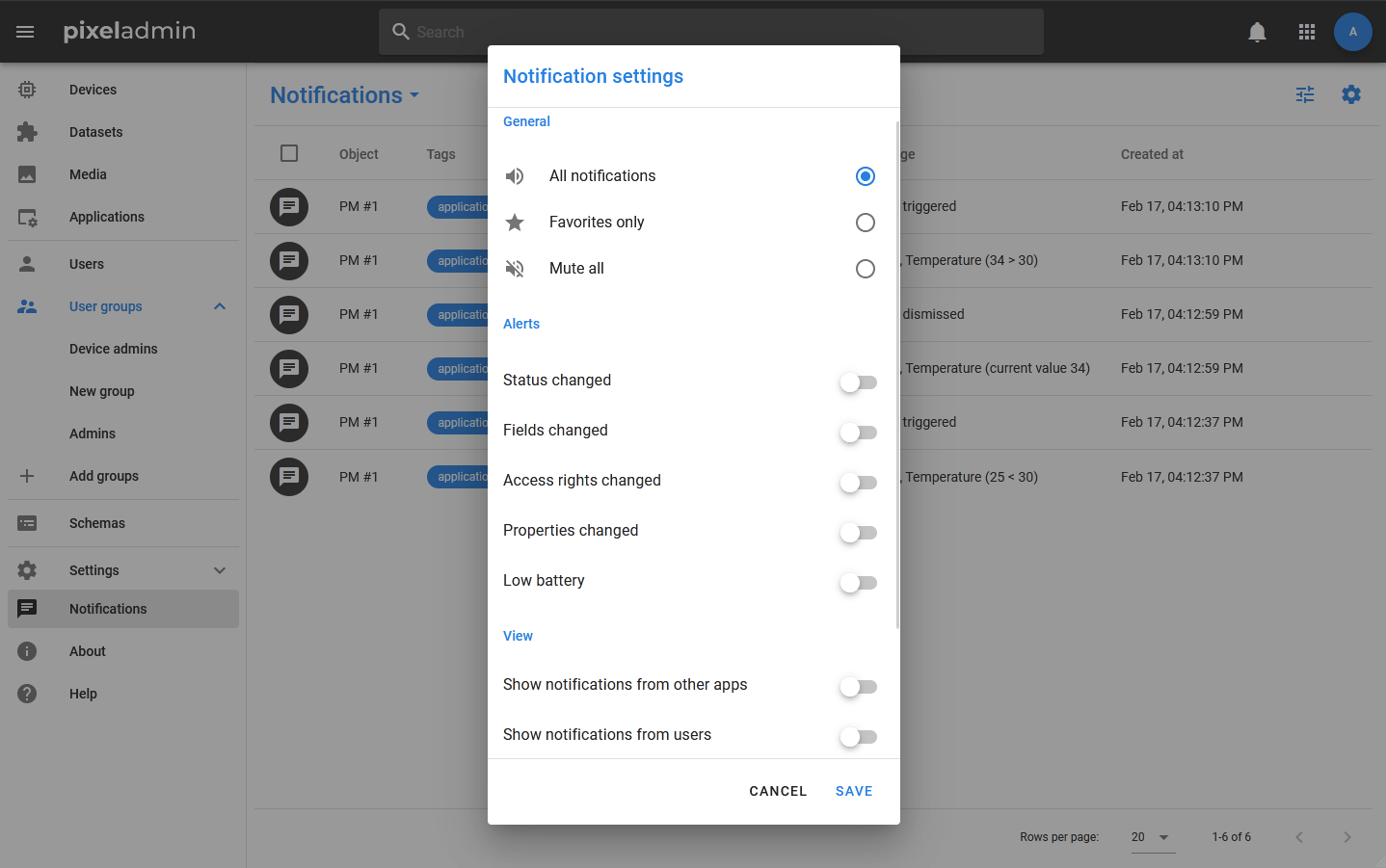
In the window that opens, you can choose from the following options for receiving notifications:
- All notifications — notifications about events of all entities will be received, except for those that the user has marked as Mute.
- Favorites only — notifications about events will be received only for those entities that were added to favorites by the user and are not marked as Mute.
- Mute all — completely disables notifications.
Notifications from specific entities are disabled via the context menu of the card or the context menu of the group selection.